Combining All Resources into One Animation Guide on combining textures, static meshes and sounds into one animation package to reduce resource count on Killing Floor servers.
#1
Posted:
Combining All Resources into One Animation
A guide that is very useful for beginner server administrators. With each new game update (patch), Tripwire increases the total number of “packages” (resources) in the game. This leads to a reduction in the ability to add additional (custom) mutators (resources) to the server. Therefore, it is advisable to reduce their number.
How to combine textures, static meshes and sounds into one animation (step-by-step instructions)
Example of packaging resources for custom mutators
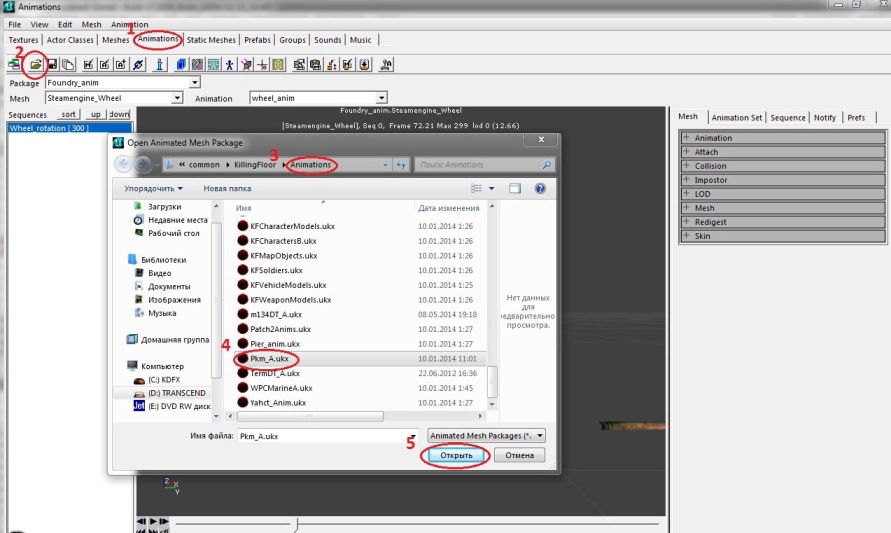
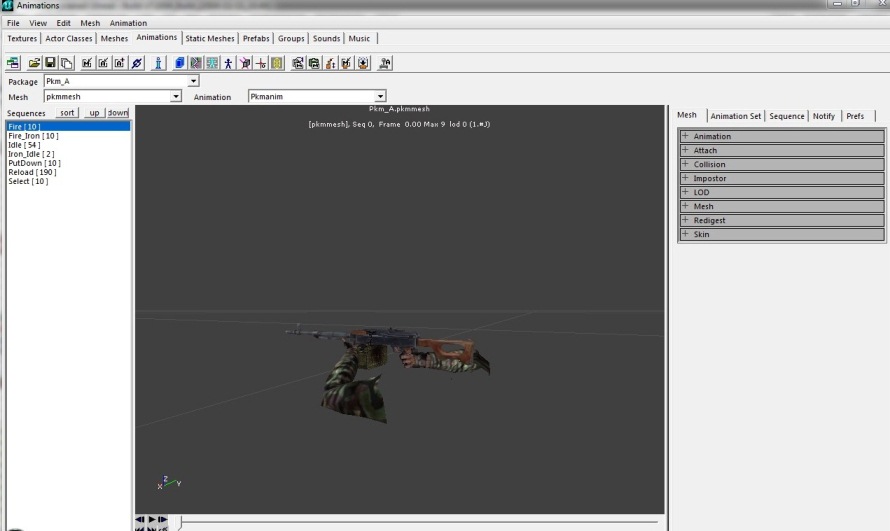
1. Open KFEd, open the desired animation
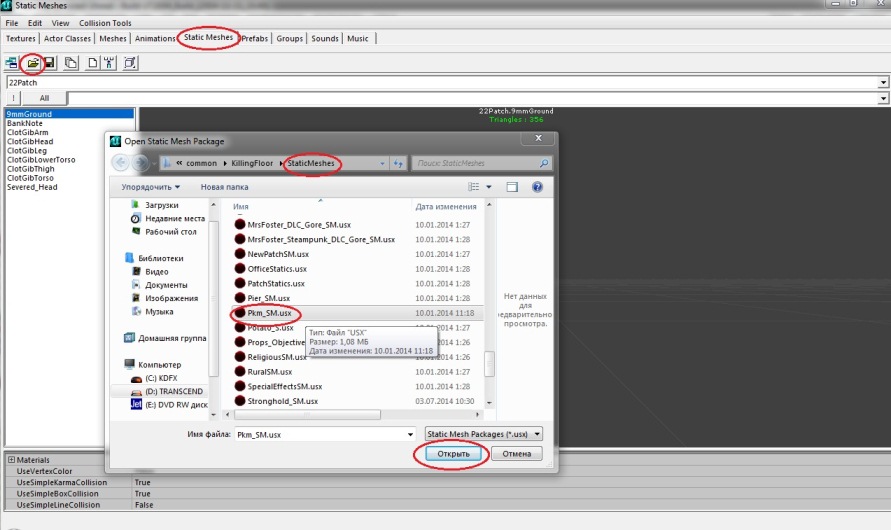
2. Open the desired Static Meshes
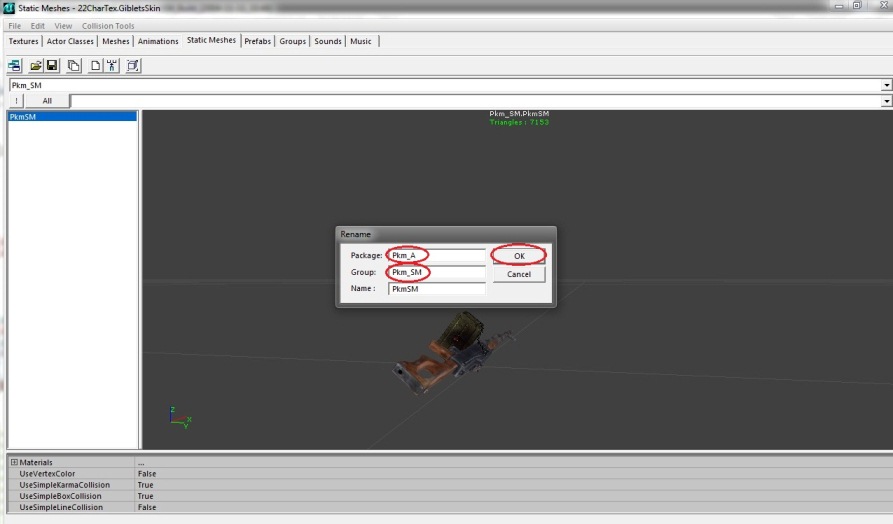
3. Rename with the animation package name
It is advisable to create a group for each type of resource. I created a group for Static Meshes with the suffix _SM (for easy identification). It is advisable to create a group if there might be name conflicts across all resources. Rename all Static Meshes in the same way, specifying the same animation package name and one group.

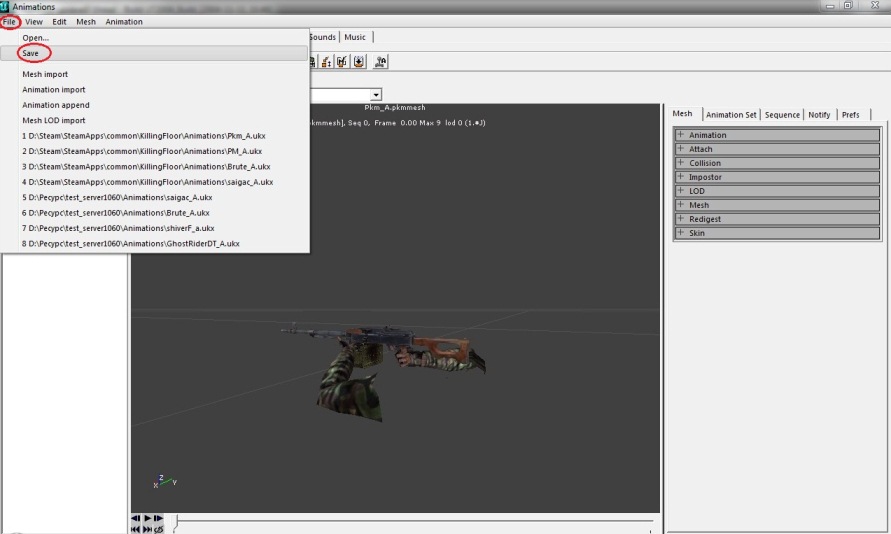
4. After renaming all Static Meshes resources, go to the animation tab and save with replacement. Reload KFEd
Packaging textures
1. Open KFEd, open the desired animation
2. Open the desired Textures
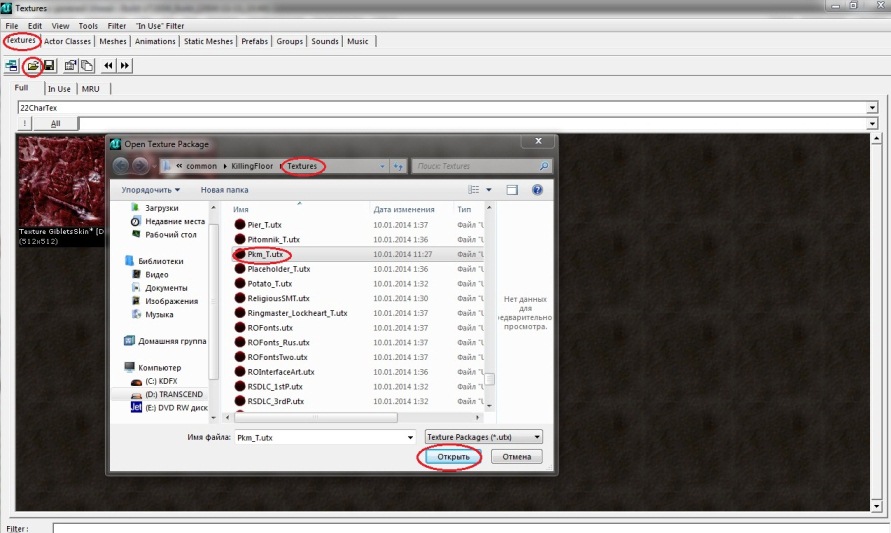
3. Rename with the animation package name and texture group (I use the suffix _T)
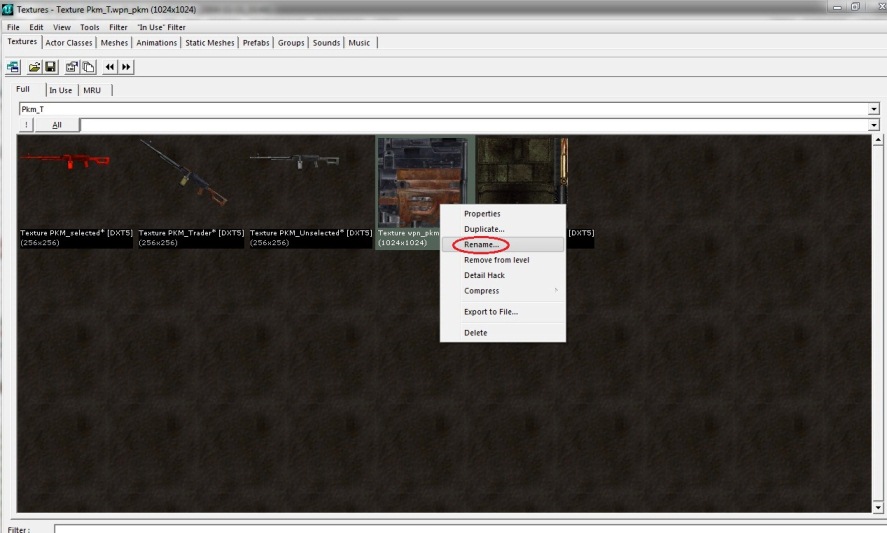

4. After renaming all Textures resources, go to the animation tab and save with replacement. Reload KFEd
Packaging sounds
1. Open KFEd, open the desired animation
2. Open the desired Sounds
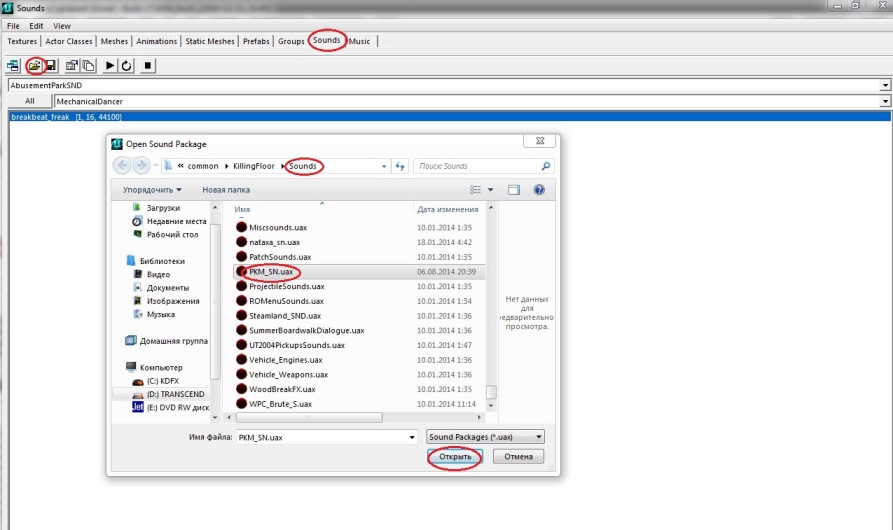
3. Rename with the animation package name and sound group (I use the suffix _S)
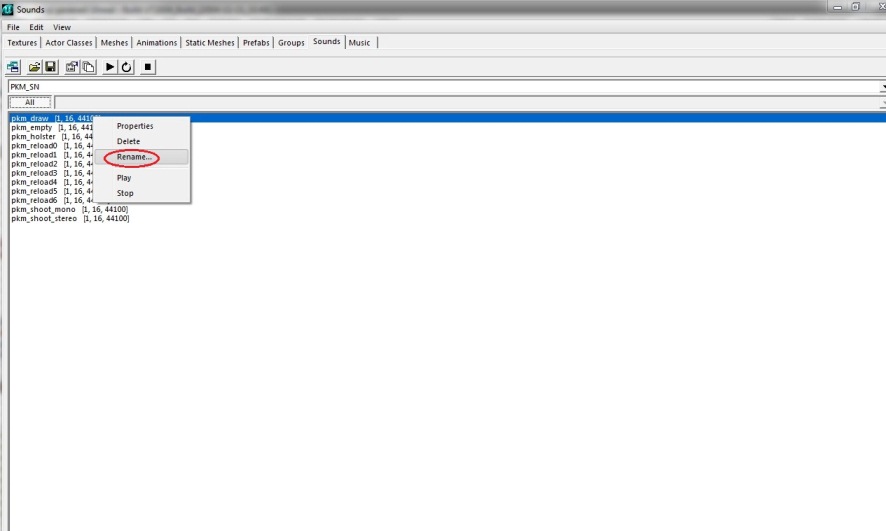

4. After renaming all Sounds resources, go to the animation tab and save with replacement. Reload KFEd
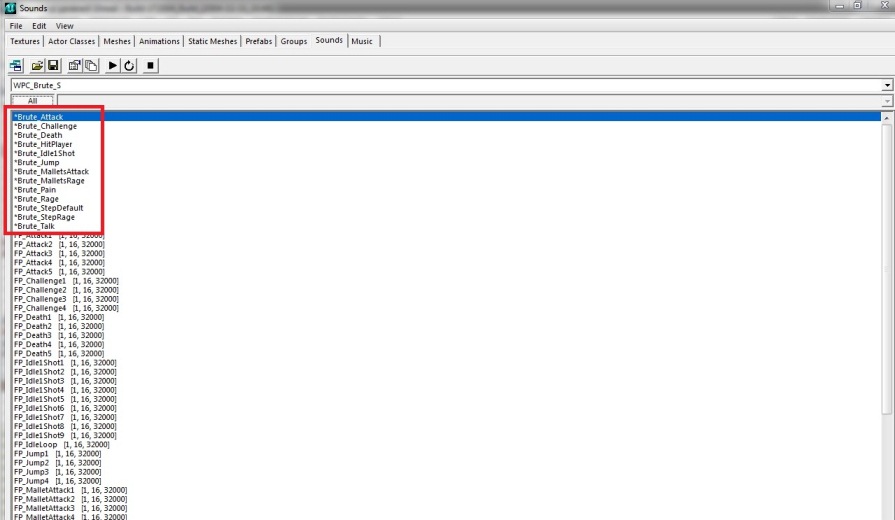
5. Sometimes sounds are still placed in SoundGroup, like with Brute
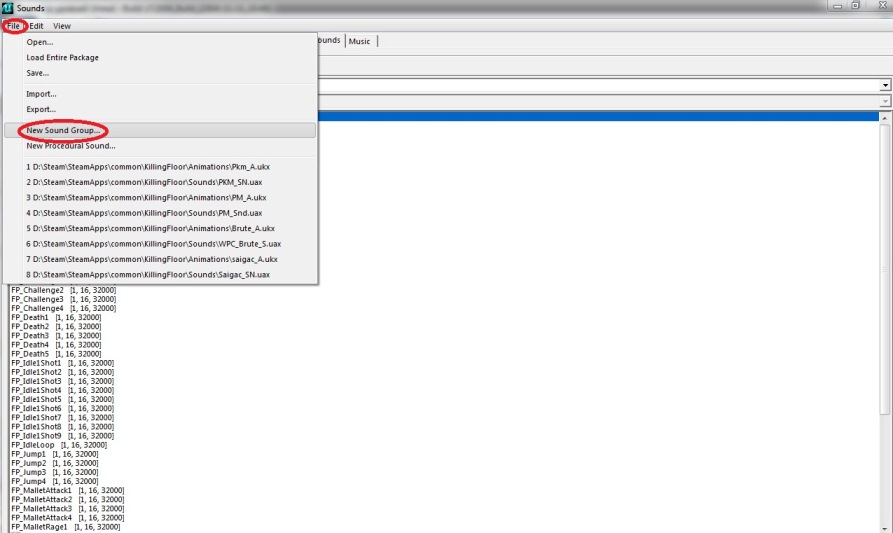
6. To place the moved sounds into the desired sound groups, you need to create a new sound group with the desired name (similar to the source)

7. In the properties of this group, assign the sounds that should be included in it (similar to the source)
Select the desired sound from the list, click “use”. Repeat the same for all sounds and sound groups. Save our “product” in the animation tab.
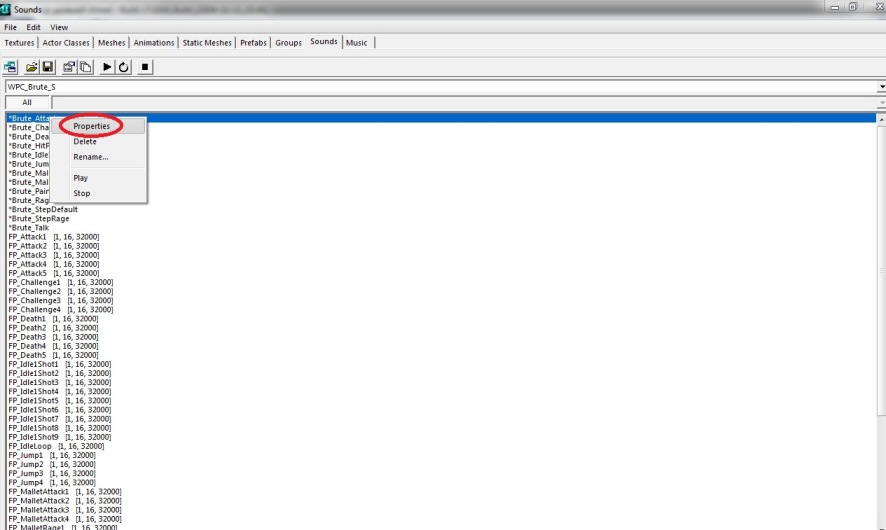
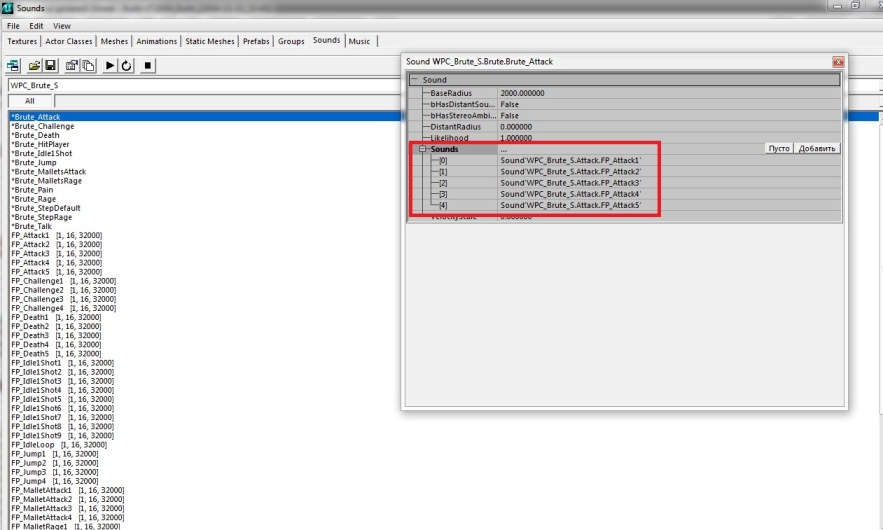
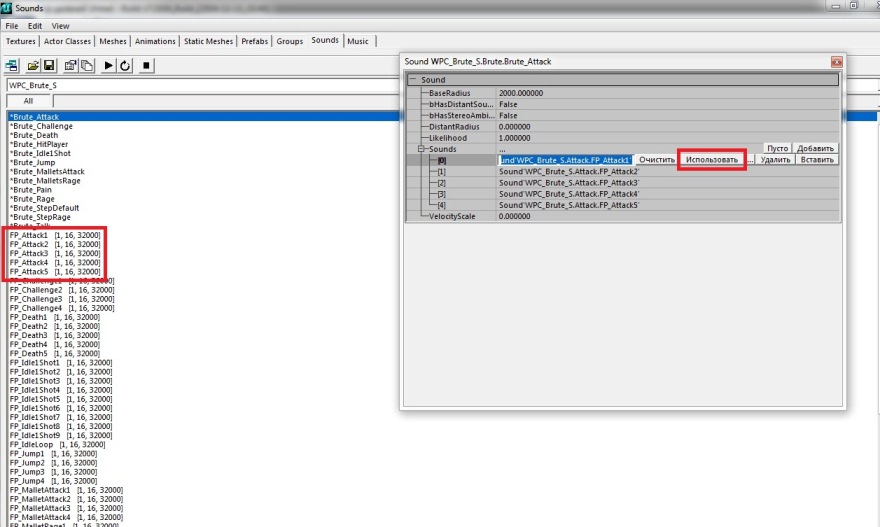
Result
Done. We have reduced the number of resource packages from four to one.
Additional Information
Extracting Resources from .u Package
If you need to extract resources (textures, animations, static meshes, or sounds) from a .u package, launch KFEd, open the .u package in the appropriate resource tabs and rename all resources using the method described above. Save.
Important Nuances When Working with Weapons
When moving meshes and weapon animations, there are important features:
-
Notifications: If you move a mesh and animation, you need to delete notifications and recreate them, assigning the previous settings. Simply moving sounds with animations won’t work.
-
References to Old Package: After moving an animation and saving it in a new package, references to the old package will remain. In all other cases everything works perfectly, but with sounds, when using them in notifications, simple moving doesn’t work and problems will arise.
-
Weapon Issues: When combining several weapon types into one package, problems with reload sounds may occur. Sounds may get mixed up between different weapon types. This is related to how sound groups work in notifications.
Texture Compression
When combining textures, it’s important to choose the correct compression format:
- DTX1: Textures without transparency that are added to a combiner can be compressed to DTX1.
- DTX3: Textures with transparency but without alpha, such as weapon textures for display in the shop, can be compressed to DTX3.
- DTX5: Textures with alpha, if they are used in a combiner, should be compressed to DTX5.
Combining Multiple Animations into One
If you have several animation packages (for example, weapon1_a.ukx and weapon2_a.ukx) and want to combine them into one (weapons_a.ukx):
- Rename
weapon1_a.ukxtoweapons_a.ukx - Open
weapons_a.ukxin the editor - Add resources from
weapon2_a.ukxtoweapons_a.ukx - Save the result
It’s important to remember to update all references and notifications when doing such a combination.