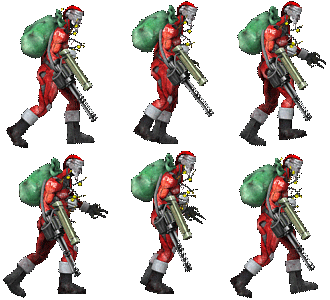

How to Add Skins to Killing Floor Server
This guide describes the process of adding custom skins to a Killing Floor server. You will need the Server Perks mutator (or a newer version) for this.
Preparation
Download and install the Server Perks mutator. Make sure you have the correct version of the mutator installed.
Installing Skin Files
Unpack the skin archive into the corresponding game folders (usually files go to the System folder, as well as animations, textures and other folders if they exist). Pay attention to the file ending with Mod. For example, for VesDT skin it might be VesDTSkinMod.u.
Configuring ServerPerks.ini
Open the ServerPerks.ini file (or ServerPerksV5.ini for version 5), which is located in the System folder, in notepad.
Add the following line at the end of the file:
CustomCharacters=After the equals sign, specify the skin name. The skin name usually consists of the package name and class name separated by a dot.
Example:
CustomCharacters=VesDTSkin.VesDTSkinIf you want to add multiple skins, add them separated by commas:
CustomCharacters=VesDTSkin.VesDTSkin,KFStigMod.KFStig,TraderMod.TraderSaving and Restarting
Save the ServerPerks.ini file and restart the server. Now players will be able to select the added skins in the regular character selection menu.
Important Notes
- Make sure all skin files are properly installed in the corresponding folders
- The skin name must exactly match the class name in the skin file
- For skins to work on the server, clients must also have the skin files installed, or the server must automatically download them via ServerPackages